Introduction:
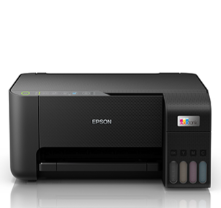
The Epson EcoTank L3250 is a feature-packed A4 Wi-Fi All-in-One Ink Tank Printer designed for efficient and cost-effective printing. To unlock its full potential, you’ll need to follow a simple process to download and install the necessary drivers and software. This article provides a step-by-step guide to help you set up your Epson EcoTank L3250 printer seamlessly.
Step 1: Unpack and Prepare Your Printer
Before you begin the installation process, make sure you have unpacked your Epson EcoTank L3250 and removed all protective materials. Place the printer in a suitable location with proper ventilation and access to a power source.
Step 2: Connect to Wi-Fi
Turn on your printer and follow the on-screen instructions to connect it to your Wi-Fi network. This step is crucial for enabling wireless printing capabilities and ensuring seamless communication between your devices and the printer.
Step 3: Visit the Epson Support Website
Open your web browser and navigate to the official Epson support website (https://epson.com/support). Look for the “Drivers and Downloads” section.
Step 4: Enter Your Printer Model
In the search bar, enter “EcoTank L3250” to locate the specific drivers and software for your printer model.
Step 5: Download Drivers and Software
Select your operating system (Windows or Mac) and download the latest drivers and software package provided for the EcoTank L3250.
Step 6: Install the Drivers
Once the download is complete, locate the downloaded file and run the installation wizard. Follow the on-screen instructions to install the drivers on your computer.
Step 7: Connect Your Printer to Your Computer
Use a USB cable to connect your computer to the Epson EcoTank L3250 during the installation process. This ensures a stable connection and facilitates the installation of necessary drivers.
Step 8: Complete the Installation
After the installation is complete, you may be prompted to restart your computer. Once your computer restarts, disconnect the USB cable and ensure that your printer is still connected to the Wi-Fi network.
Step 9: Test Your Printer
Print a test page to ensure that your Epson EcoTank L3250 is successfully connected and ready for use. This step helps you verify that both your computer and printer are communicating effectively.
Conclusion:
By following this step-by-step guide, you can easily download and install the drivers and software for your Epson EcoTank L3250 A4 Wi-Fi All-in-One Ink Tank Printer. Enjoy the convenience of wireless printing and the impressive features that come with this efficient and cost-effective printer.
Epson EcoTank L3250 Review: A Cost-Efficient Wi-Fi All-in-One Ink Tank Printer
Introduction:
The Epson EcoTank L3250 is a versatile A4 Wi-Fi All-in-One Ink Tank Printer that stands out for its innovative design, cost-efficient operation, and wireless connectivity features. In this review, we’ll explore the key aspects that make this printer a compelling choice for home and small office users.
Design and Build:
The EcoTank L3250 boasts a compact and user-friendly design, making it suitable for various settings. The integrated ink tank system eliminates the need for traditional ink cartridges, reducing waste and offering a cleaner and more sustainable solution. The transparent ink tanks allow users to easily monitor ink levels, preventing unexpected interruptions during print jobs.
Printing Performance:
Equipped with Epson’s PrecisionCore technology, the EcoTank L3250 delivers sharp and vibrant prints. With a high resolution of up to 5760 x 1440 dpi, it produces detailed images and crisp text. The inclusion of black pigment ink ensures that text documents are clear and legible.
Cost Efficiency:
One of the standout features of the EcoTank series is its cost-efficient operation. The refillable ink tanks significantly reduce printing costs per page, making it an economical choice for users with high-volume printing needs. The initial investment may be higher than traditional inkjet printers, but the long-term savings on ink make it a wise investment.
Wireless Connectivity:
The inclusion of Wi-Fi connectivity enhances the printer’s usability by allowing users to print directly from their computers, smartphones, or tablets. This feature promotes convenience and flexibility, enabling users to print from different devices without the hassle of connecting cables.
Ease of Use:
Setting up the EcoTank L3250 is straightforward, thanks to the clear on-screen instructions during the initial installation. The user-friendly control panel provides easy access to various functions, and the ability to print wirelessly adds to the overall convenience.
Additional Features:
The EcoTank L3250 supports a variety of paper sizes and types, making it versatile for different printing needs. With features like borderless printing and auto-duplex printing, users can achieve professional-looking documents and save on paper costs.
Conclusion:
The Epson EcoTank L3250 A4 Wi-Fi All-in-One Ink Tank Printer offers a compelling solution for users seeking cost efficiency, convenience, and high-quality prints. Its innovative design, wireless capabilities, and long-term savings on ink costs make it a practical choice for home users and small offices with moderate to high printing demands. If you’re looking for a reliable and economical printer, the EcoTank L3250 is certainly worth considering.