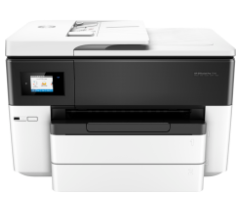
The HP OfficeJet Pro 7740 is a versatile all-in-one printer that is known for its professional-quality prints and a wide range of features. To harness the full potential of this printer, it’s crucial to install the appropriate drivers correctly. In this article, we’ll guide you through the step-by-step process of installing the HP OfficeJet Pro 7740 driver on your computer.
Step 1: Check System Requirements
Before you begin the installation process, ensure that your computer meets the system requirements for the HP OfficeJet Pro 7740 driver. Typically, the printer is compatible with major operating systems such as Windows, macOS, and Linux. Visit the official HP website to verify the specific requirements for your operating system.
Step 2: Download the Driver
Visit the official HP support website (support.hp.com) and navigate to the “Software and Drivers” section. Enter your printer model (OfficeJet Pro 7740) and choose your operating system. Download the latest version of the driver software for your specific platform.
Step 3: Run the Installer
Once the driver file is downloaded, locate the file and double-click on it to run the installer. Follow the on-screen instructions to initiate the installation process. In some cases, you may be prompted to connect the printer to your computer during the installation.
Step 4: Connect the Printer
If not done during the installation process, connect your HP OfficeJet Pro 7740 to your computer using a USB cable or through a wired or wireless network connection. Ensure that the printer is powered on and recognized by your computer.
Step 5: Complete the Installation
Continue following the on-screen prompts to complete the installation. The installer will likely ask you to choose between a wired or wireless connection, select your preferred options accordingly. Once the installation is complete, you may be prompted to print a test page to ensure that the printer is functioning correctly.
Step 6: Software Installation (Optional)
HP often provides additional software and utilities along with the basic driver. These can include scanning tools, print management software, and other features. If you wish to install any additional software, follow the prompts during the installation process.
Step 7: Verify Driver Installation
After completing the installation, it’s advisable to verify that the driver has been installed correctly. Go to your computer’s “Devices and Printers” or “Printers & Scanners” section and confirm that your HP OfficeJet Pro 7740 is listed as an installed printer.
Conclusion:
Installing the HP OfficeJet Pro 7740 driver is a straightforward process, and following these steps should help you set up your printer for optimal performance. Always refer to the official HP support website for the latest driver updates and additional resources.