Introduction:
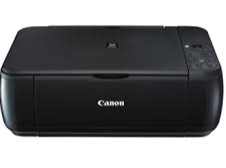
The Canon PIXMA MP287 is a versatile all-in-one printer that combines high-quality printing, scanning, and copying capabilities. To ensure smooth operation and access to all of its features, it’s essential to install the correct drivers on your computer. This guide will walk you through the process of downloading the Canon MP287 printer driver, ensuring your device communicates effectively with your computer.
Step 1: Identify Your Operating System
Before you start the download process, it’s crucial to know the operating system (OS) of your computer or laptop. The Canon MP287 printer driver is compatible with various versions of Windows (from XP to Windows 10) and macOS. Knowing your OS version ensures you download the compatible driver.
Step 2: Visit the Official Canon Website
Open your web browser and navigate to the official Canon website. It’s important to download drivers directly from the official source to avoid malware and ensure you’re getting the latest, most secure version of the software.
Step 3: Locate the Support Section
On the Canon website, find and click on the ‘Support’ link. This section is designed to provide assistance with Canon products, including drivers and software downloads. You may have to select your region to proceed.
Step 4: Search for Your Printer Model
In the support section, use the search bar or navigate through the product categories to find the PIXMA MP287 printer. Once you’ve found your printer model, click on it to access the download page.
Step 5: Select the Driver & Download
On the Canon MP287 support page, you’ll find a tab or section labeled ‘Drivers & Downloads’ or something similar. Here, you can select your operating system from a drop-down menu to filter the available software for your OS.
After selecting your operating system, you’ll see a list of available downloads. Look for the driver software, which is often categorized under a ‘Drivers’ or ‘Software’ tab. Click on the ‘Download’ button next to the most recent driver version. Be sure to read the description and release date to ensure compatibility and recency.
Step 6: Install the Driver
After the download is complete, locate the downloaded file on your computer (usually in the ‘Downloads’ folder) and double-click to begin the installation process. Follow the on-screen instructions, which typically involve agreeing to terms and conditions, selecting an installation location, and confirming your installation choices.
During the installation process, you may be prompted to connect your Canon MP287 printer to your computer via USB. Ensure your printer is turned on and ready to connect.
Step 7: Complete the Installation and Test
Once the installation is complete, you might need to restart your computer. After restarting, test the printer to ensure it’s working correctly by printing a test page. This can usually be done directly from the printer’s properties menu in your computer’s control panel or system settings.
Conclusion:
Downloading and installing the Canon MP287 printer driver is a straightforward process that enhances the functionality of your printer. By following these steps, you can ensure that your Canon MP287 is up to date and fully compatible with your computer’s operating system, thereby enabling you to enjoy all the features and capabilities of your all-in-one printer. Remember to periodically check the Canon website for driver updates to maintain optimal performance.